 Flight Studio
User guide
Everything you need to go from a flight to a finished video. Version 1.0.0.
Install
- Download Flight Studio for Mac (macOS 12 or later, Apple silicon).
- Open the downloaded file and drag Flight Studio into Applications.
- Open it from Applications. If macOS says it can't check the app, right-click it, choose Open, then Open again — you only need to do this once.
Get your flight logs
Your drone's app saves a flight record for every flight. Copy those files to your Mac:
- iPhone or iPad: connect it to your Mac, open Finder, select the device, choose Files, open DJI Fly and drag the FlightRecords folder to your Mac.
- Android: connect it to your Mac with a file-transfer app and copy the files from
Android/data/dji.go.v5/files/FlightRecord. - Other options: Flight Studio also opens Airdata CSV exports and the .SRT files DJI cameras save next to each video.
Flight records are named like FlightRecord_2026-10-08_[12-11-45].txt. Copy the whole folder — Flight Studio skips anything it has already imported.
Import into the Logbook
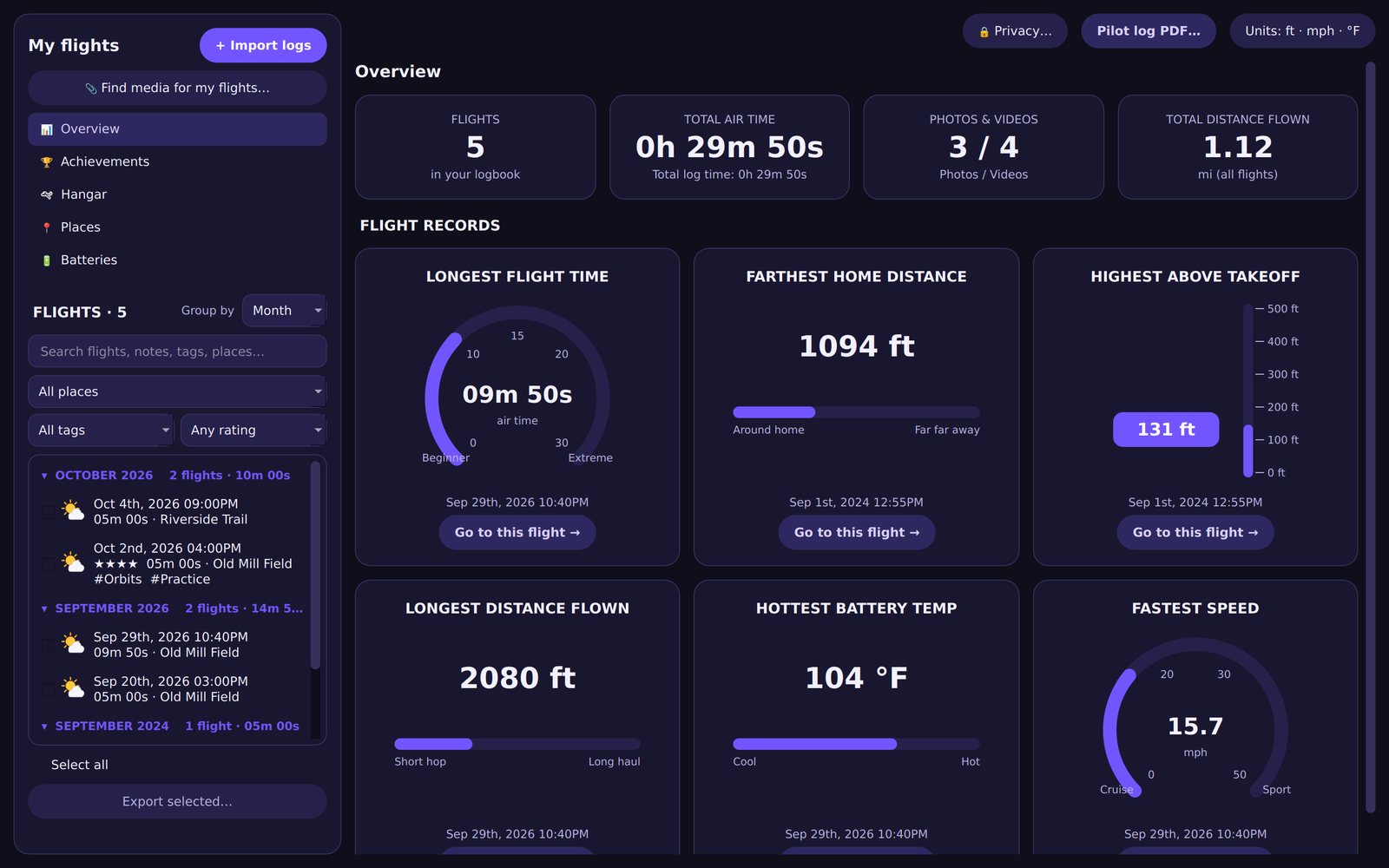
- Click Logbook in the top bar.
- Click + Import logs and choose your files, or drag them (or a whole folder) onto the Logbook window.
- Each flight appears in the list, grouped by month. Click one to see its stats, weather, map and charts.
Put flight data on a video
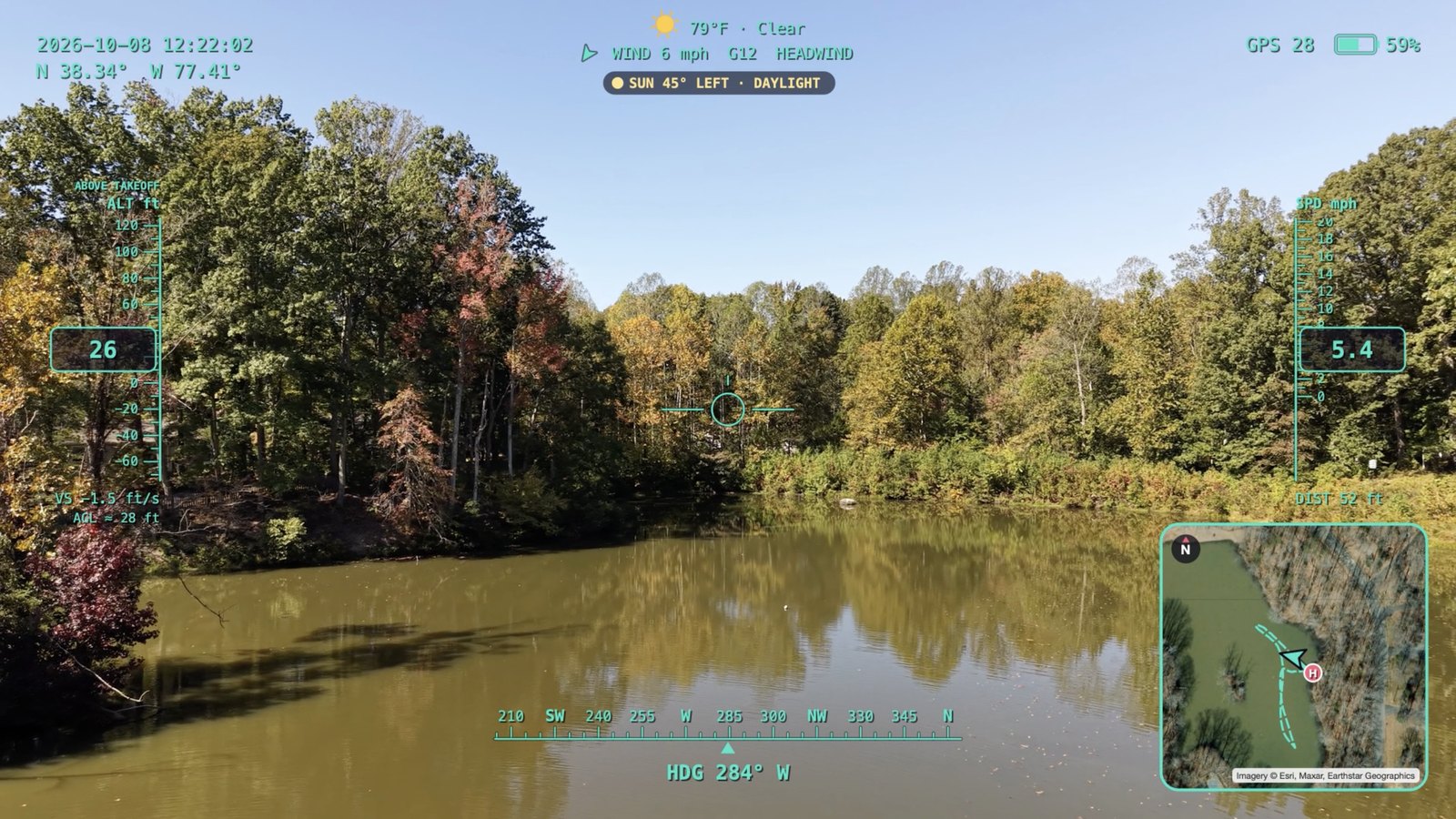
- Click Open video and pick a clip from your drone (or drag it onto the window).
- Flight Studio finds the flight it was filmed on in your Logbook and lines it up automatically. The green Synced chip under the video confirms it.
- Use Overlays on the left to choose what to show: live map, altitude, speed, heading, battery, crosshair, time, weather and sun. Presets switch everything in one click.
- Use HUD look on the right to pick a theme, colour, units and overlay size, and Live map for the map style and zoom.
Line up video and data
Most clips sync on their own. If the numbers look early or late compared with the footage:
- Click Auto-sync in the Sync panel to try again.
- If your flight has several recordings, pick the right one under Recording in this flight log.
- Fine-tune with Telemetry offset (seconds). A good check: take off on camera, then make sure the altitude starts rising at that moment.
Export your video
- Optional: choose a part of the clip. Move the playhead to the start and press I (or Set in), then to the end and press O (Set out). The range is shaded on the timeline.
- Click Export video and choose how the overlays come out:
- Burned into the video — one finished file, ready to share.
- Transparent overlay layer — for editing in Final Cut, Premiere or DaVinci Resolve.
- Clean video + telemetry CSV — the clip plus the flight data as a spreadsheet.
- Split screen — your footage next to a 3D replay of the same moment.
- Pick the resolution and Range (In to out point or Whole clip), then click Start export. Show in Finder takes you to the file.
Make a highlight reel
- Open a video, then click Highlight reel.
- Flight Studio finds the best moments — fast passes, climbs, orbits, the highest point. Untick any you don't want.
- Choose the length, Landscape or Vertical (for Reels, TikTok and Shorts), and optionally a song — cuts land on the beat.
- Optional: click Write recap for a short summary and pick a voice to narrate it.
- Click Create reel.
3D Replay and flyovers
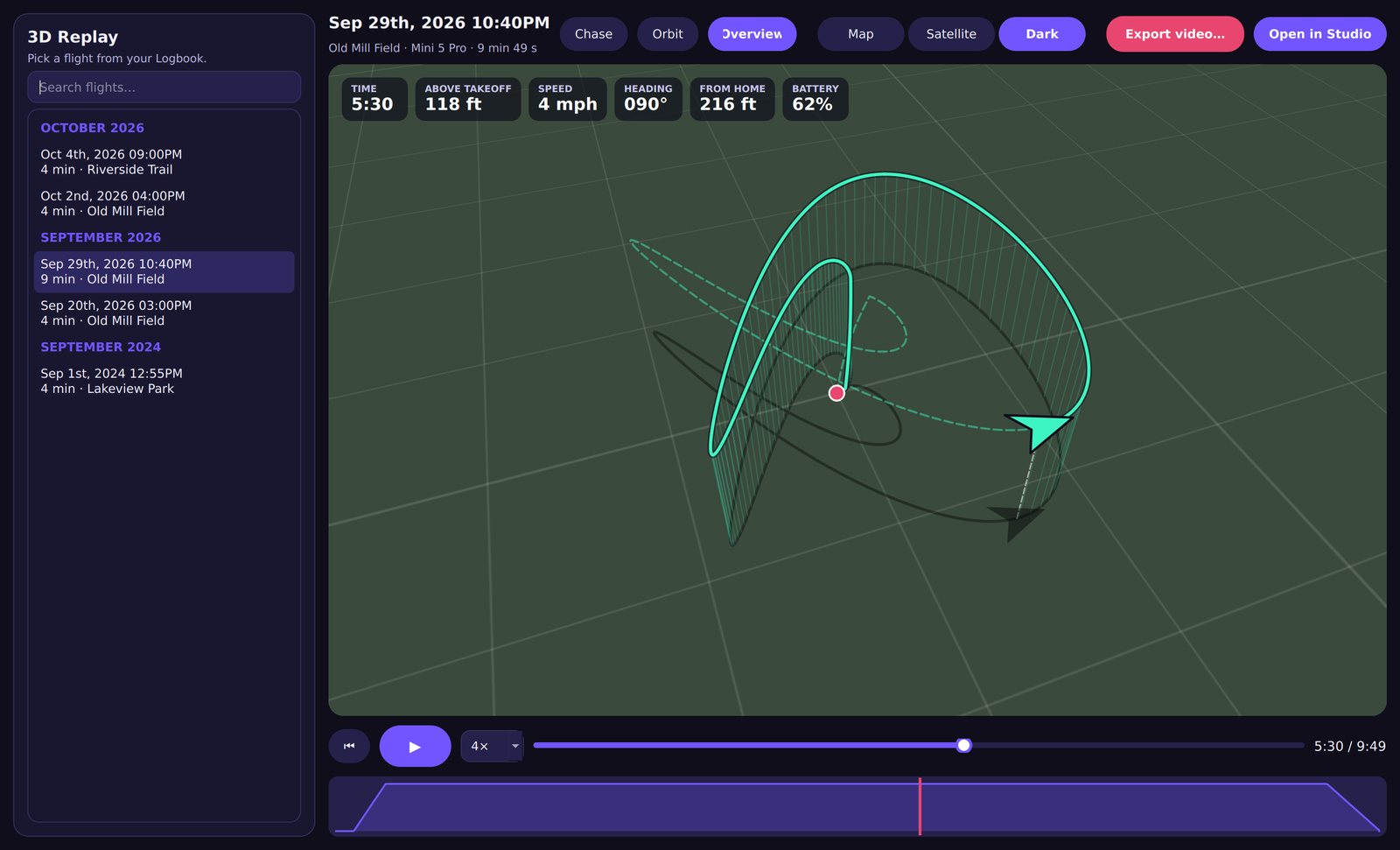
- Click 3D Replay in the top bar (or 3D replay on a flight's page) and pick a flight.
- Choose a camera: Chase, Orbit or Overview. Drag to look around, scroll to zoom, double-click to reset.
- Click Export video… for a cinematic flyover with a title and stats card, optionally set to music.
Using the Logbook
- Flight page: rate the flight, add tags and notes, choose the aircraft and battery, and see weather, map and charts.
- Media: drop photos and videos from that flight onto its Media card, or use 📎 Find media for my flights… to match a whole folder by capture time.
- Places: flights are grouped by where you took off. Rename places to something meaningful.
- Batteries: health for each battery — cycles, drain, temperature and warnings.
- Hangar: your aircraft with your own photos and their stats.
- Achievements: badges you earn as you fly.
- Search and filters: find flights by place, tag, rating, notes or date; group the list by month, place, aircraft or rating.
- Exports: CSV files of any flights, and a printable Pilot log PDF.
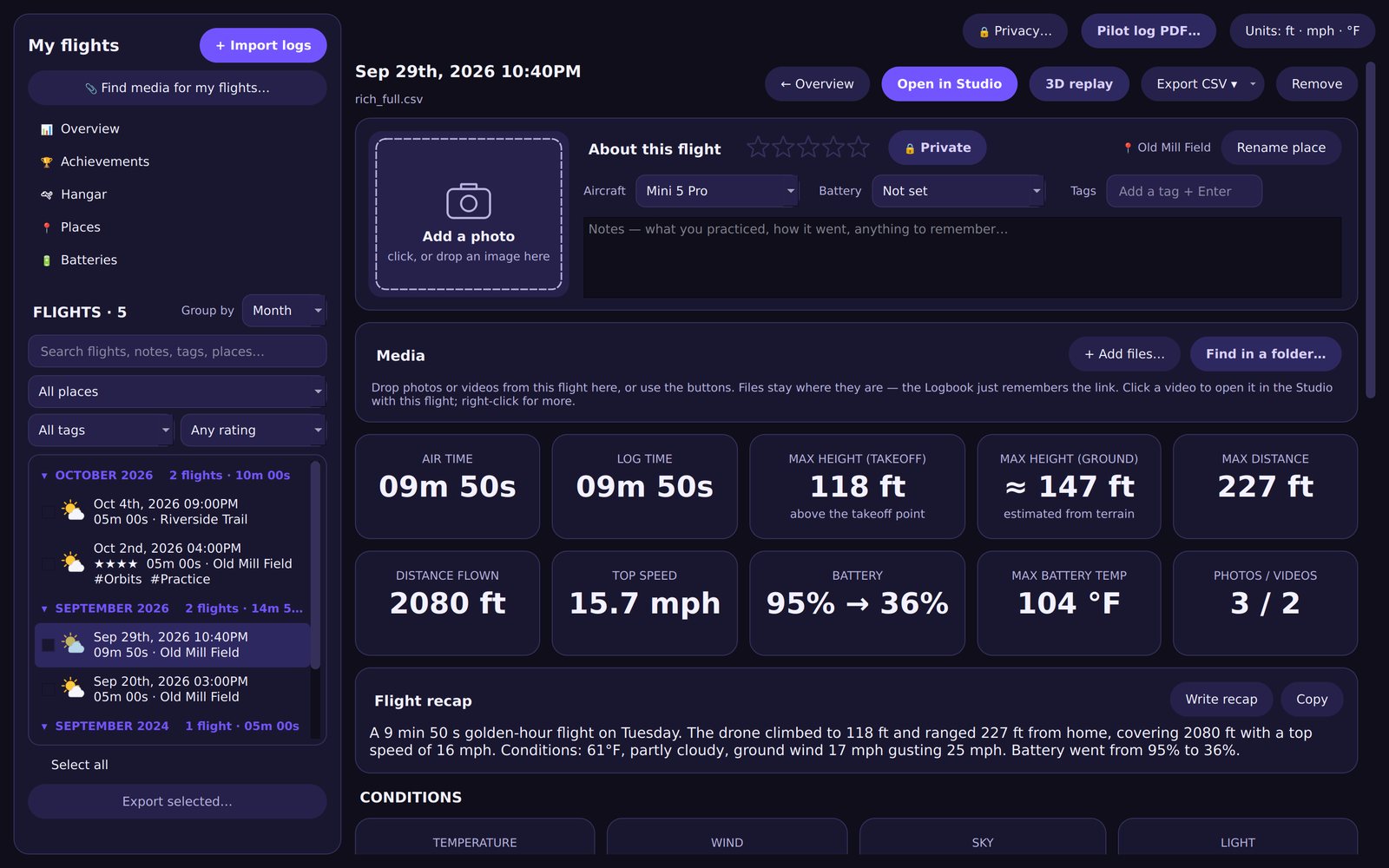
Height: takeoff vs. ground
Your drone measures height from where it took off. Over hills or slopes, the real height above the ground below can be quite different. Flight Studio shows both:
- Above takeoff (ALT) — what the drone reports.
- Above ground (AGL) — estimated from terrain data and marked with ≈. It doesn't include trees or buildings.
Choose which one the HUD shows under HUD look → Height shown.
Privacy
Your footage and logs stay on your Mac. These settings control what appears in anything you export — open them with Logbook → 🔒 Privacy….
- Private flights (the default) never show coordinates in exports, and their maps and 3D videos hide the location. Mark a flight 🌐 Shareable on its page when you're happy to show where it was.
- Masked places, such as home, are always hidden — coordinates disappear and maps show a privacy circle, even on shareable flights.
- Coordinates for shareable flights can be exact, approximate (about 1 km) or hidden.
Free, trial and Pro
- The free version includes the Classic HUD, live map, weather, 3D Replay and up to 10 flights. Exports are up to 1080p with a small Flight Studio mark.
- Click ⭐ Upgrade to Pro to start a free 14-day trial — no card needed (one trial per Mac; starting it needs an internet connection).
- The Pro window shows your timeline: when the trial started and ends, or when your subscription renews, with days left.
- After buying, paste the license key from your email into the Pro window and click Activate. Lost it? It's on your order at app.lemonsqueezy.com/my-orders.
- Manage subscription… lets you update your card or cancel. Deactivate this Mac frees your key to use on another Mac.
Keyboard shortcuts
| Space | Play / pause |
| ← → | Step one frame back / forward |
| I | Set the In point |
| O | Set the Out point |
If a shortcut doesn't respond, click the video first — a text box may still have the keyboard.
Troubleshooting
- My video didn't match a flight
- Import the flight's log into the Logbook first, then open the video again. Videos renamed after recording can still be matched: drop them onto the flight's Media card.
- The numbers are a few seconds off
- Click Auto-sync, or adjust Telemetry offset in the Sync panel.
- A DJI flight record won't import
- Check you're connected to the internet — DJI records are decrypted through DJI's official service the first time you import them.
- The map or weather is missing
- Both are downloaded for each flight, so they need an internet connection the first time. They're saved for next time.
- The map says “PRIVATE”
- The flight is private, or it was near a masked place. See Privacy.
- I can't import more flights
- The free version holds 10 flights. Start the trial or upgrade to Pro for unlimited flights.
Still stuck? Email support@flightstudio-us.com — a screenshot helps.